
Organization exports
Filter and download standardized metadata and images from multiple projects within your organization in a single bulk export. You must be an Organization Owner to use this feature.
**This feature is currently available only with paid subscriptions. Visit our pricing page for more information, and contact the Wildlife Insights team for a quote.**
Request an Organization export
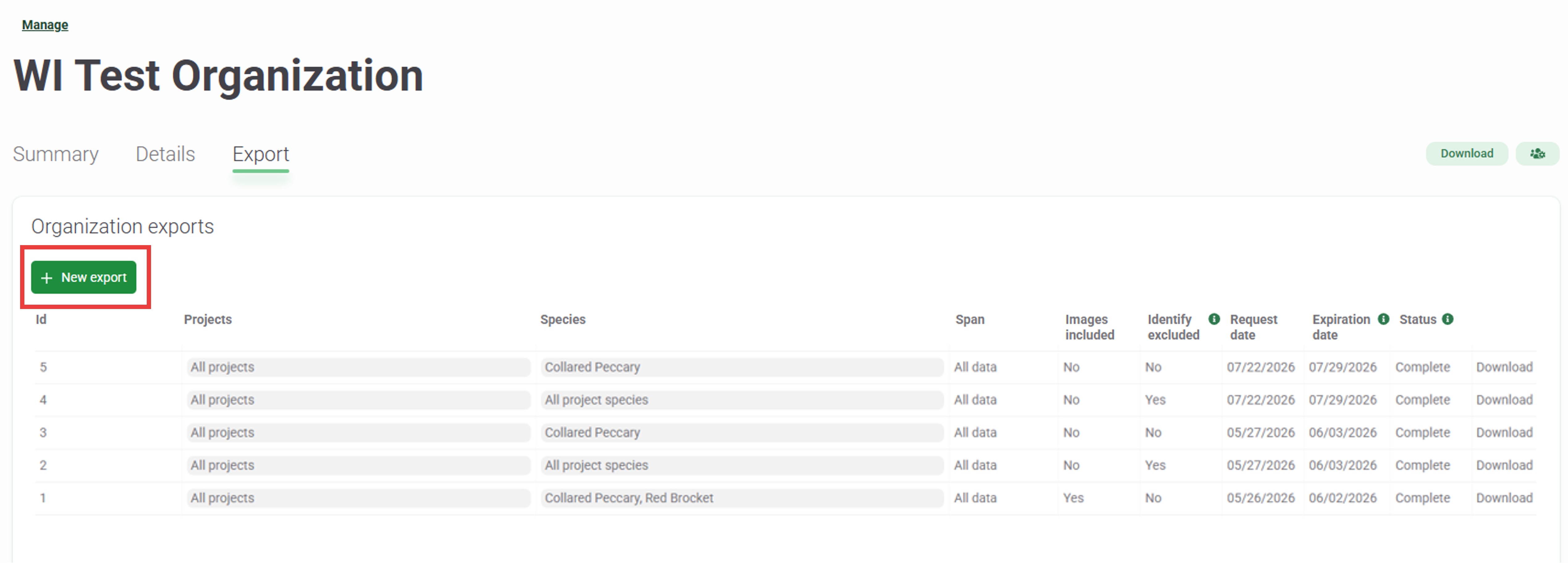
In your Organization, click the Export tab, then click New export.
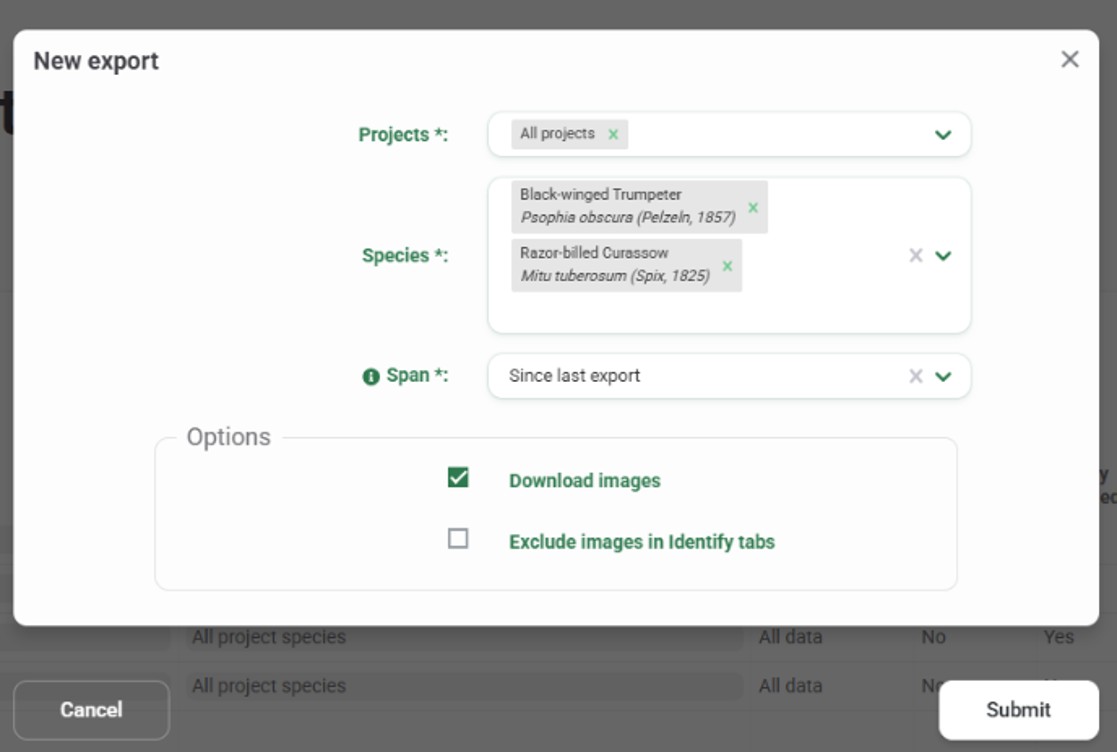
- In the New Export dialog that appears:
- Filter the data you wish to download by Project, Species, and Span (all data or since last export).
- Under Options, check any options to Download images or Exclude images in the Identify tabs if they apply.
- Click Submit.
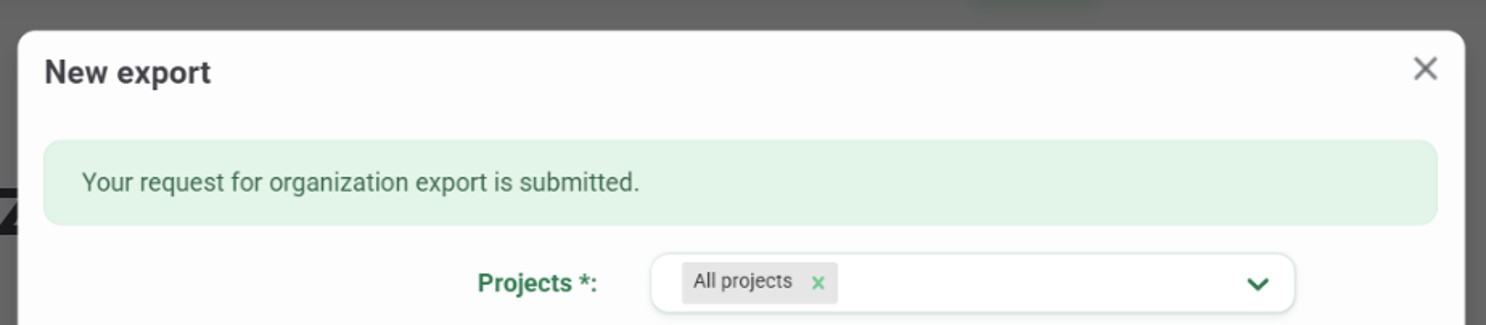
- You will receive a confirmation message that “Your request for an organization export has been submitted.” Close the New export window.
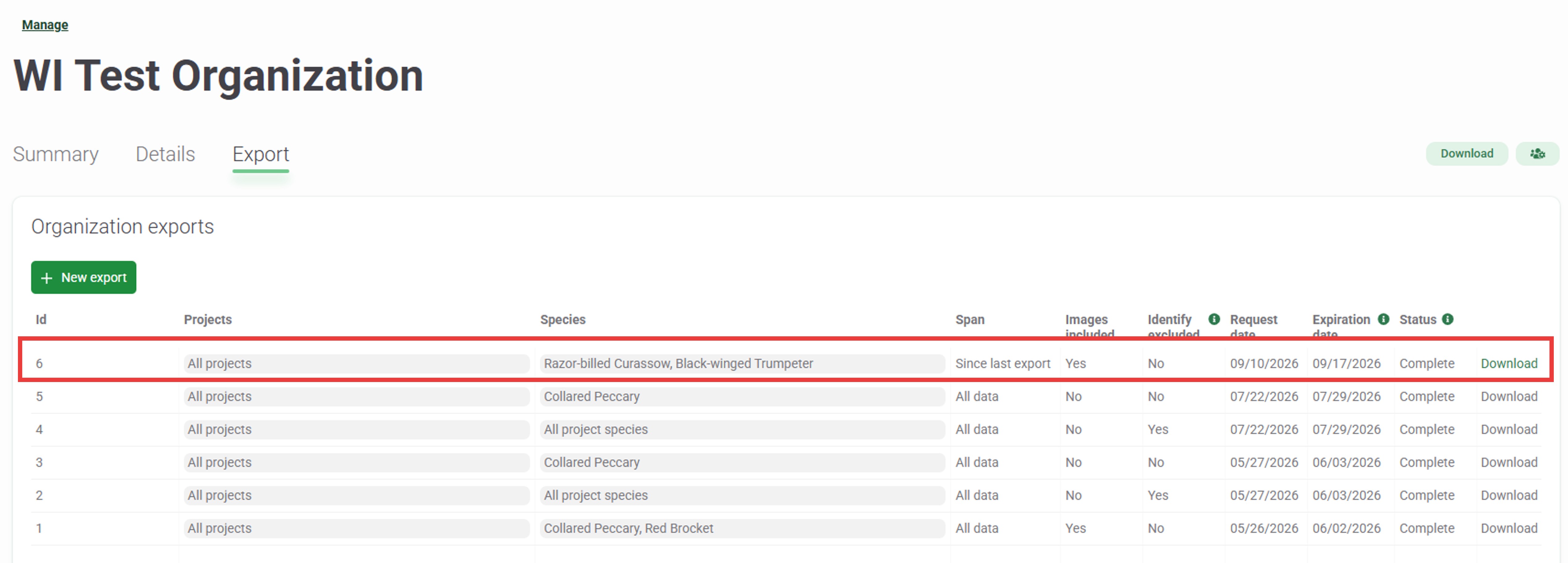
- Monitor the progress of your export in the Organization export list, under the Export tab. When the export is complete, the Status will change from In progress to Complete, and the Download link will be enabled. You will also get an email notification when your export is ready to download.
| Note: Each export is available for download for 7 days after you request it. Additionally, all data downloads (“all projects” + “all project species”) can only be requested once per month. |
Download data
Under Organization export, click the Download link for your export request to download a text file containing links to download your metadata and image data bundles as a .zip file to your computer.
Filters applied Action Single project or species Downloads a single text file directly Multiple species Opens a Details dialog with download links for each species
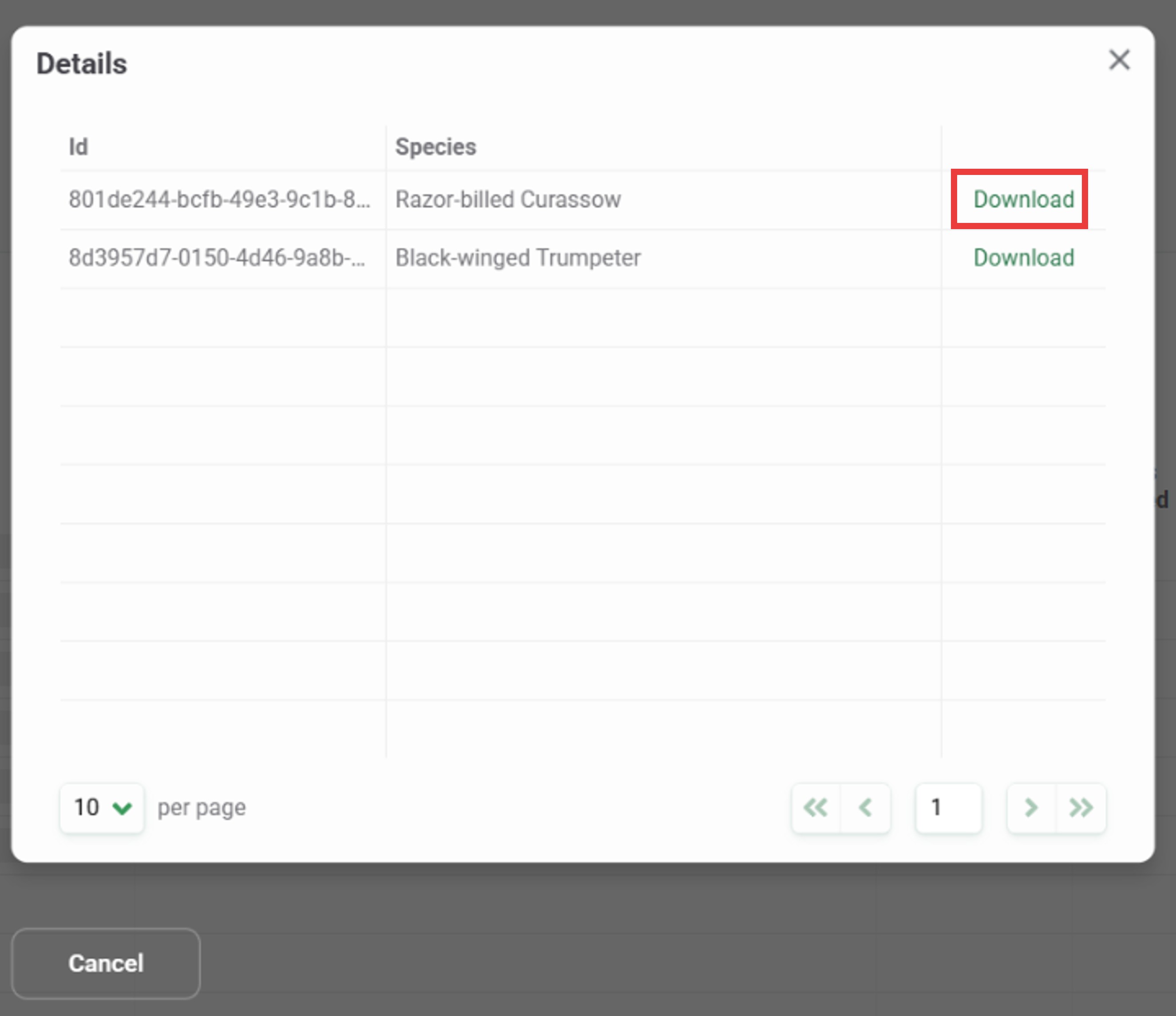
Multiple projects Opens a Details dialog with download links for each project All projects & all species Downloads a single text file directly - Each text file contains a list of URLs to download a metadata or image data bundle (.zip) included in your export. If you requested a large amount of data, there may be multiple metadata bundle URLs and multiple image bundle URLs.
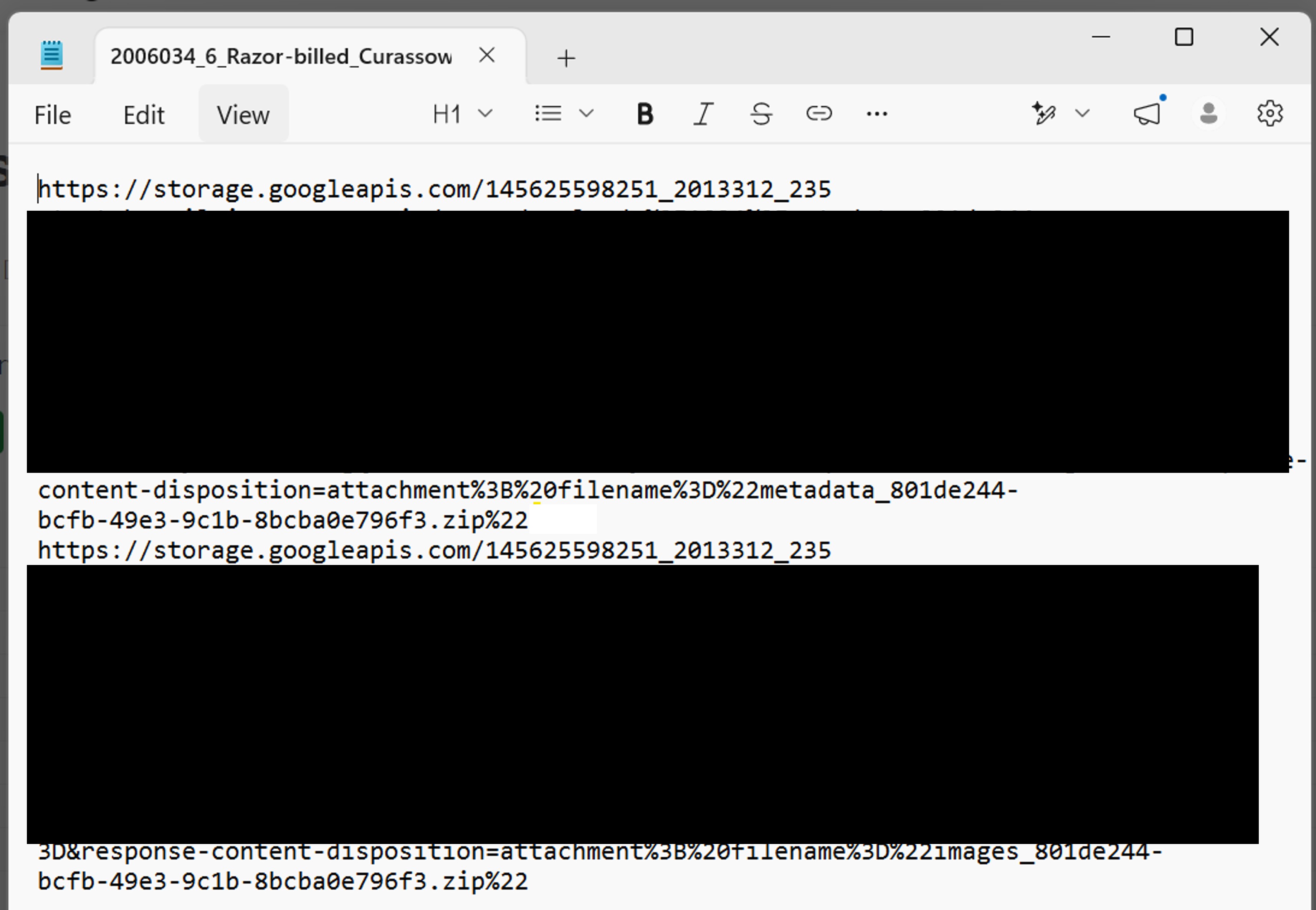
- Using Free Download Manager (see the Bulk download data using Free Download Manager section ), bulk-download the ZIP files of your data from these links. You can also copy and paste each URL into your browser to download a ZIP file of your data, though this may take longer.
- Unzip your data packages.
- Metadata .zip files will include the following files:
projects.csv: metadata about project methodology and objectivescameras.csv: metadata about the devices (cameras) used in the projectdeployments.csv: metadata about the placement of a camera, including start date, end date, coordinates and other camera settings;- Detections: data about the animals detected by the camera traps are reported in one of two ways, depending on how the data was recorded:
images.csv: data about each image, including species identifications and date/time;sequences.csv: data about a sequence of images, including species identifications and date/time. These are used for rapid bursts of images that typically represent one animal or animal group.
- Wildlife Insights Data Use and Citation Guides: Guidance for how to use data downloaded from Wildlife Insights in an analysis or for any other purpose, including providing attribution to the dataset creator/creators as described by the license assigned to the dataset and instructions for downloading images.
- Wildlife Insights Data Dictionary: Definitions for each field in the files provided; and
- Wildlife Insights Terms of Use and Privacy Policy
- Images
.zipfiles will include all image files in your export. Each file will be named with its image_id (e.g., 0010206e-b097-4a57-965b-442e1ad1b13a.jpg)
- Metadata .zip files will include the following files:
Note: Bounding boxes are not included in the downloaded images, but the coordinates of the bounding boxes are included in the images.csv file. |
Bulk download data using Free Download Manager
If you requested a large amount of data from your organization, you may need to download multiple metadata and image bundles. You can use a 3rd-party download application, such as Free Download Manager, or a custom script (e.g., in Python) to make bulk downloading your data easie
| Note: Before downloading images, make sure you have enough disk space on your computer or an attached external drive! You can quickly fill up your allocated storage. |
Bulk download data using Free Download Manager
- Launch Free Download Manager.
Open the hamburger menu (click on the three horizontal lines) and click the Paste urls from file option.

- Browse to your .txt file, select it and click Import.
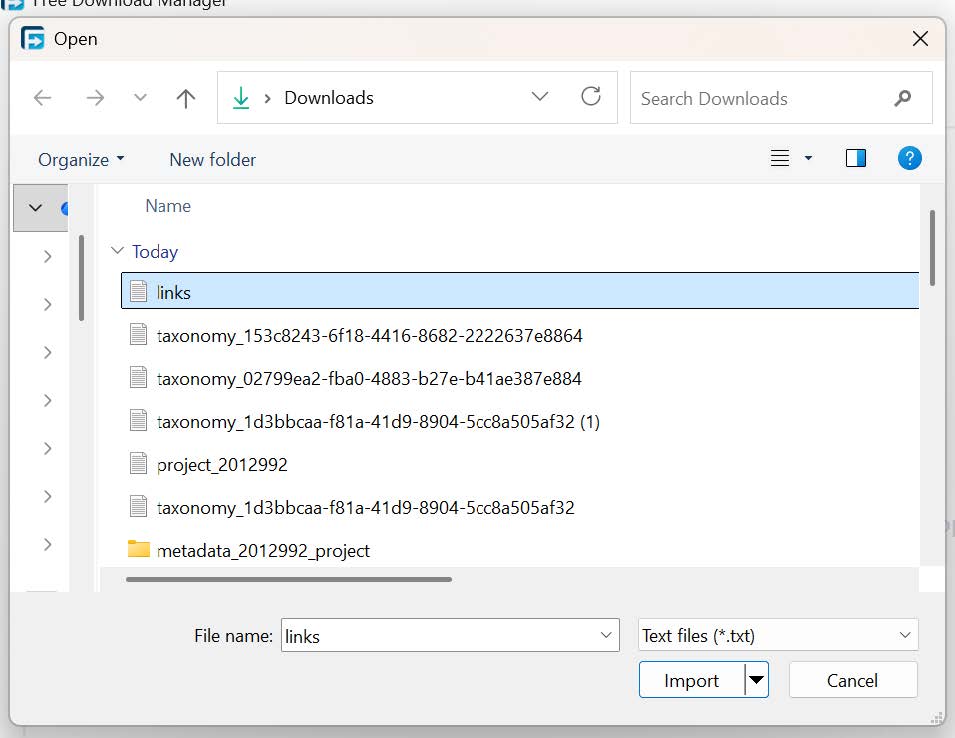
- Free Download Manager will parse all URLs it finds in the text file.
- In the New download dialog that appears:
- Set the Save To folder.
- Create a subfolder if desired.
- Select all links to download
- Click Download.
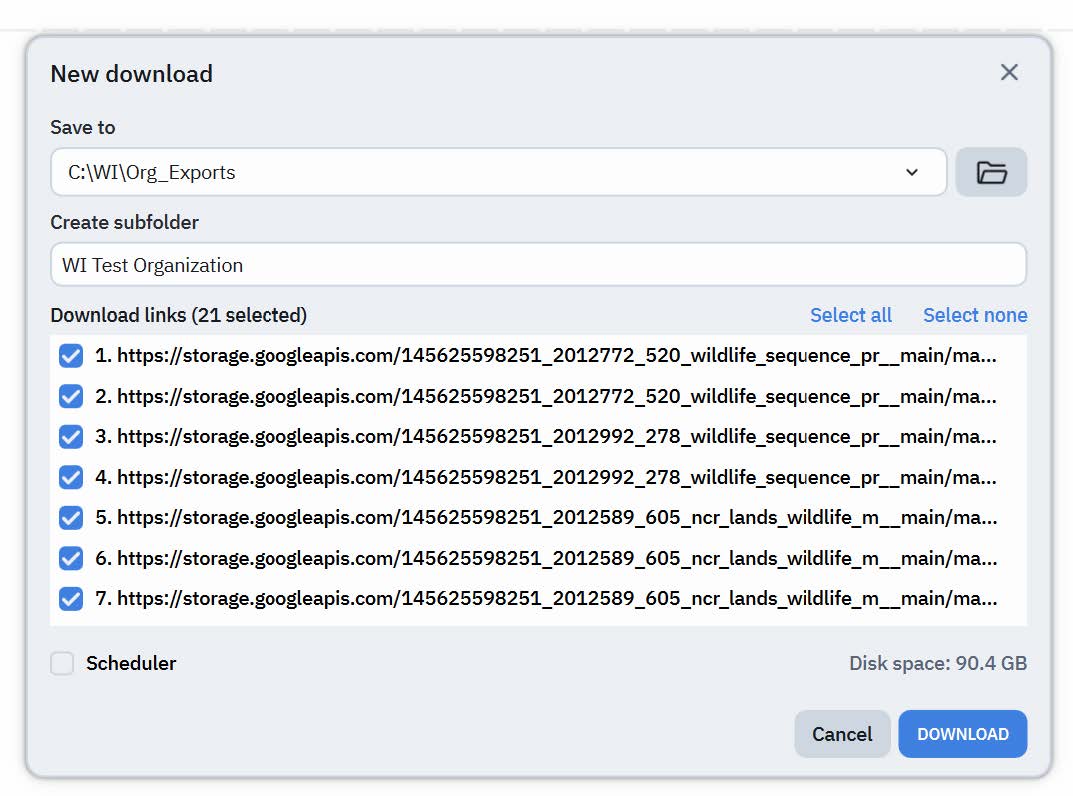
- Each zip file in the text file will download to your computer.
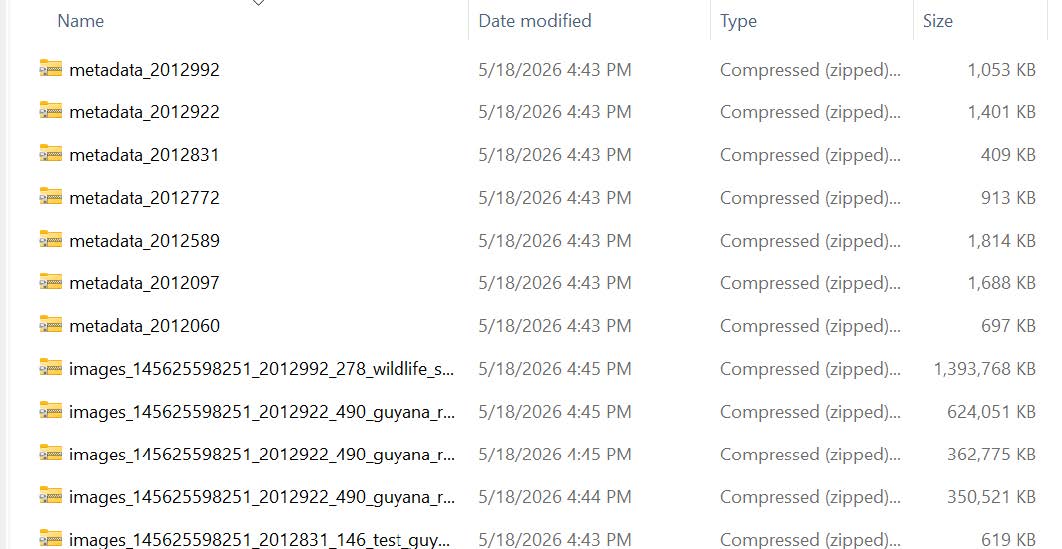
Monitor and Manage Your Downloads
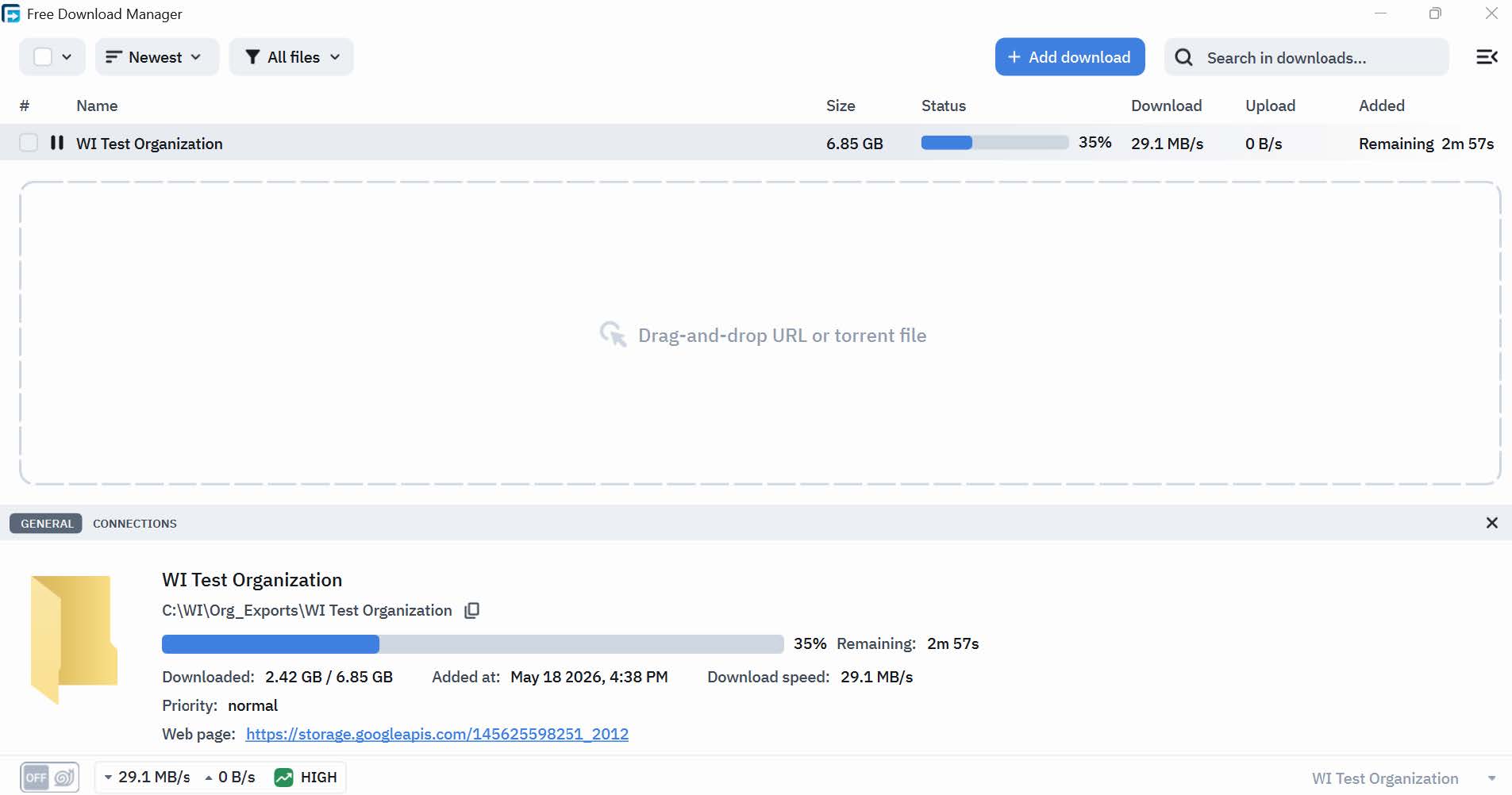
Once your downloads begin, you can track and manage them from the Free Download Manager main window.
- Monitor progress: View each download's completion status in real time.
- Pause/Resume: Right-click any active download and select Pause. To resume, right-click and select Resume.
- Retry failed downloads: If a download fails, right-click it and select Restart to try again from where it left off.
 Back to the guide